← Back to journal
Deploying an Astro Portfolio on Cloudflare Pages
A practical path from a local Astro build to a preview you can inspect, with a few deployment traps to avoid.
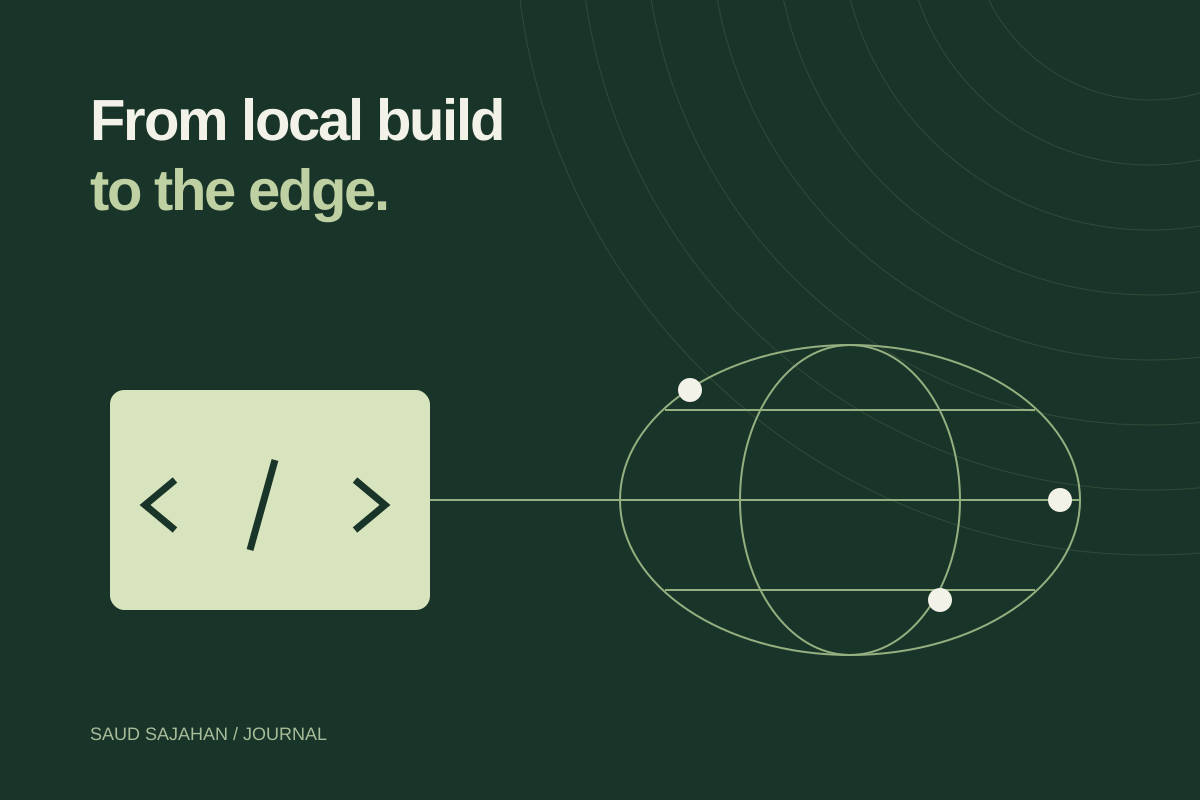
A portfolio deployment should be repeatable. You should know which command produced the files, which routes are included, and how to inspect a change before it reaches the main site. That makes small content updates much less stressful.
This walkthrough is for an Astro site that generates static HTML. Dynamic rendering and server integrations require a runtime-specific setup; do not assume that copying a static output directory deploys every backend feature.
Start with the production build
Run the project’s existing build command, then preview its output:
npm ci
npm run build
npm run preview
Use the package manager and lockfile already committed to your project. If the repository includes an asset pipeline or route allowlist, keep those steps in the build command rather than bypassing them with a bare framework command.
Open the homepage, an article, a case study, and a page that does not exist. Follow navigation links, reload a nested route directly, and check images on a small screen. The development server can expose routes that a production build intentionally excludes.
Connect the output to Pages
For a conventional static Astro build, Cloudflare’s Astro Pages guide uses npm run build and the dist output directory. Match the build root to the folder containing your app, and use a Node version compatible with its dependencies.
With Git integration, connect the repository in Pages and enter those build settings. A failed build should stop deployment; avoid scripts that hide an error and return a successful exit code.
Direct upload is another option for an existing Pages project:
npx wrangler pages deploy dist --project-name your-projectReplace the project name deliberately and check the target account before running it. This command publishes files; it is not a local preview. Cloudflare documents the workflow and the differences from Git integration in its Direct Upload guide.
Inspect a preview as a visitor
Use a branch preview for review before merging a visual change. Cloudflare explains branch previews and their URLs in its preview deployments documentation.
For a portfolio, a short review route is enough to expose many issues: homepage → work → case study → blog → article → contact. Then repeat the route using the browser’s Back button. Check that a page transition has not left a menu open or a section invisible.
Keep preview pages out of search results and verify that canonical URLs point to the intended public domain. If a form relies on a server endpoint, test it in an environment with that endpoint available. A local static preview alone cannot prove that email delivery works.
Treat assets as part of the release
Prefer local, optimized images for the portrait, work, and article covers. Include width and height so the browser can reserve space. Use a responsive source set where a smaller image will do, and avoid making the main portrait wait for a lazy-loading trigger.
Check file-name casing: a reference that happens to work on a Windows machine can fail when served from a case-sensitive environment. Open the actual generated URLs rather than assuming that a successful build means every asset is reachable.
Keep build-time variables separate from browser-visible values. A secret should never be placed into a public-prefixed environment variable or bundled into client JavaScript.
Troubleshoot the deployed artifact
If a page returns 404, check that its HTML was generated and survived any cleanup step. If an image fails, compare its URL with the deployed filename. If a form fails, inspect the request and server response separately from the visual form state.
When a release introduces a regression, Cloudflare supports returning to an earlier successful production deployment; see its rollback documentation. Record what failed before moving on so the next build can check for it.
The takeaway is simple: validate what you are shipping. Keep the build reproducible, review a preview, and test the routes and assets that represent real visitor journeys.